


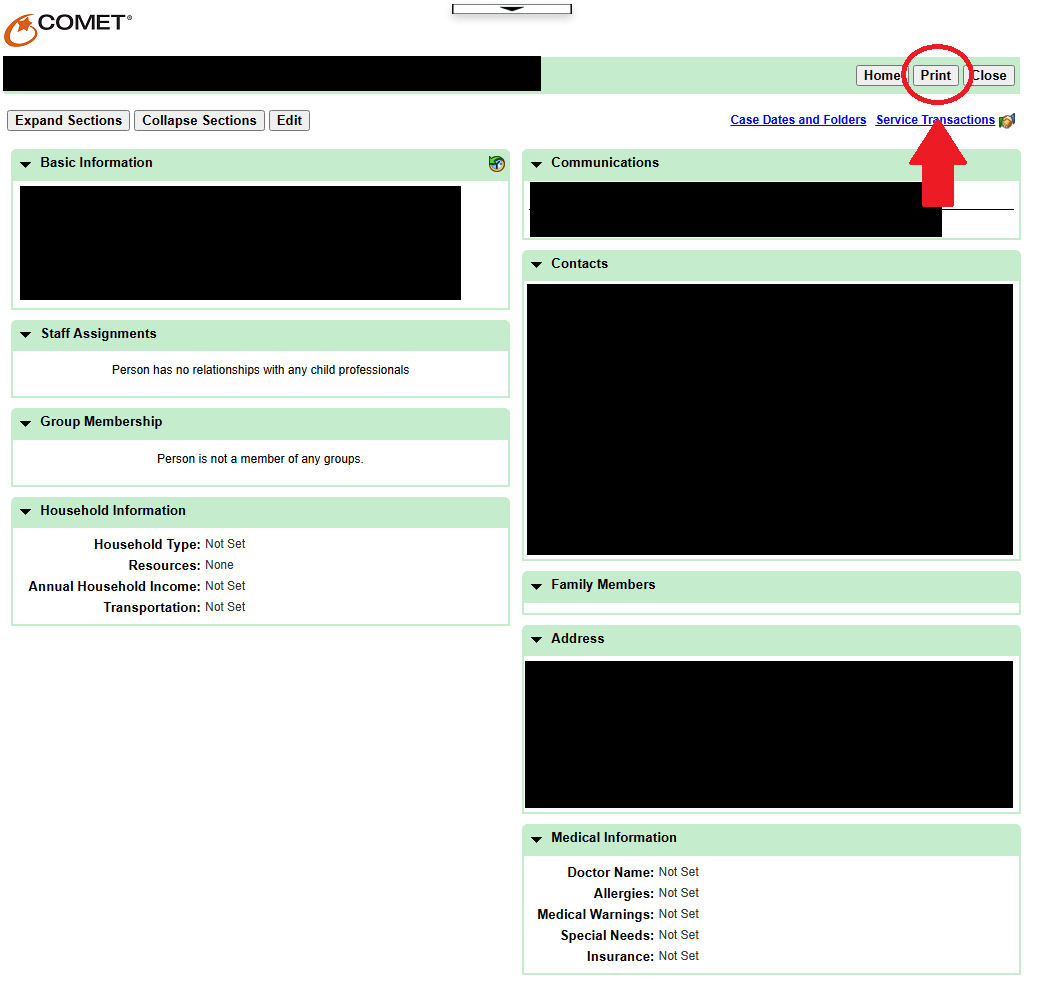
1. Hit the "Print" button at the top right on the page of data that you need to save.
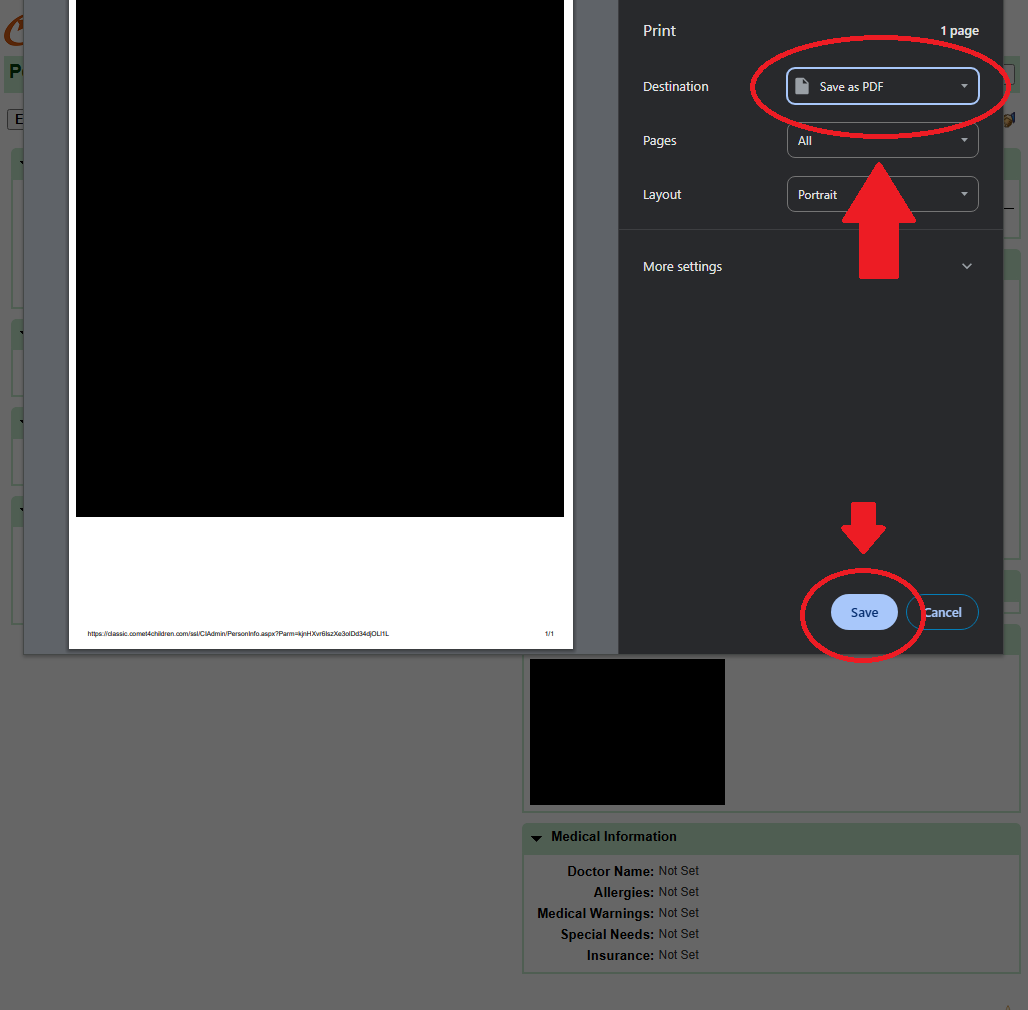
2. In the resulting print dialog window, select the destination/printer, and change it to "Save as PDF" or similar, then hit the "Save" button below. You may need to scroll up/down the list of destinations to find the "Save to PDF" Option.
3. Choose the save destination. Usually, this should just be your "Downloads" folder by default, but feel free to choose any folder on your PC; just remember which folder you save it to. Make sure you name the file according to the conventions sent by Taijanah (LastName, FirstName) with additional information as needed. After you've chosen a proper name, hit the save button.
4. Open up the COMET Backups Sharepoint, available at https://spccroch148.sharepoint.com/sites/cometbackups/Comet%20Backups/Programs. Select your program, then your name. That is your backups folder; you are only able to access the folder with your name on it.
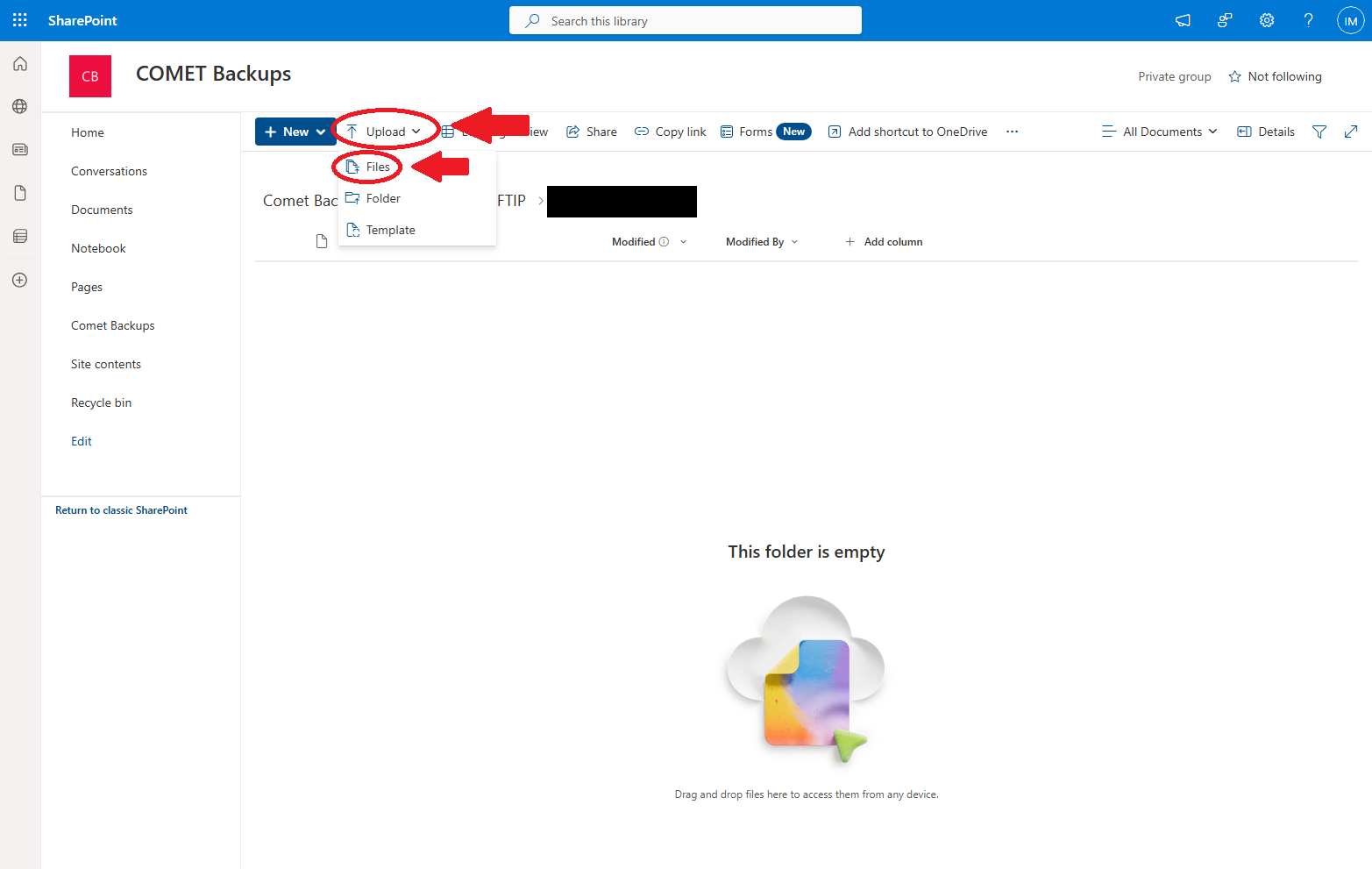
5. Once you are in your folder, click on the "Upload" button at the top left, then click on "Files".
6. Navigate to the folder where you had saved the PDF from COMET in Step 3. Click on the file, then click on "Open" at the bottom right. You can also simply double click the file.
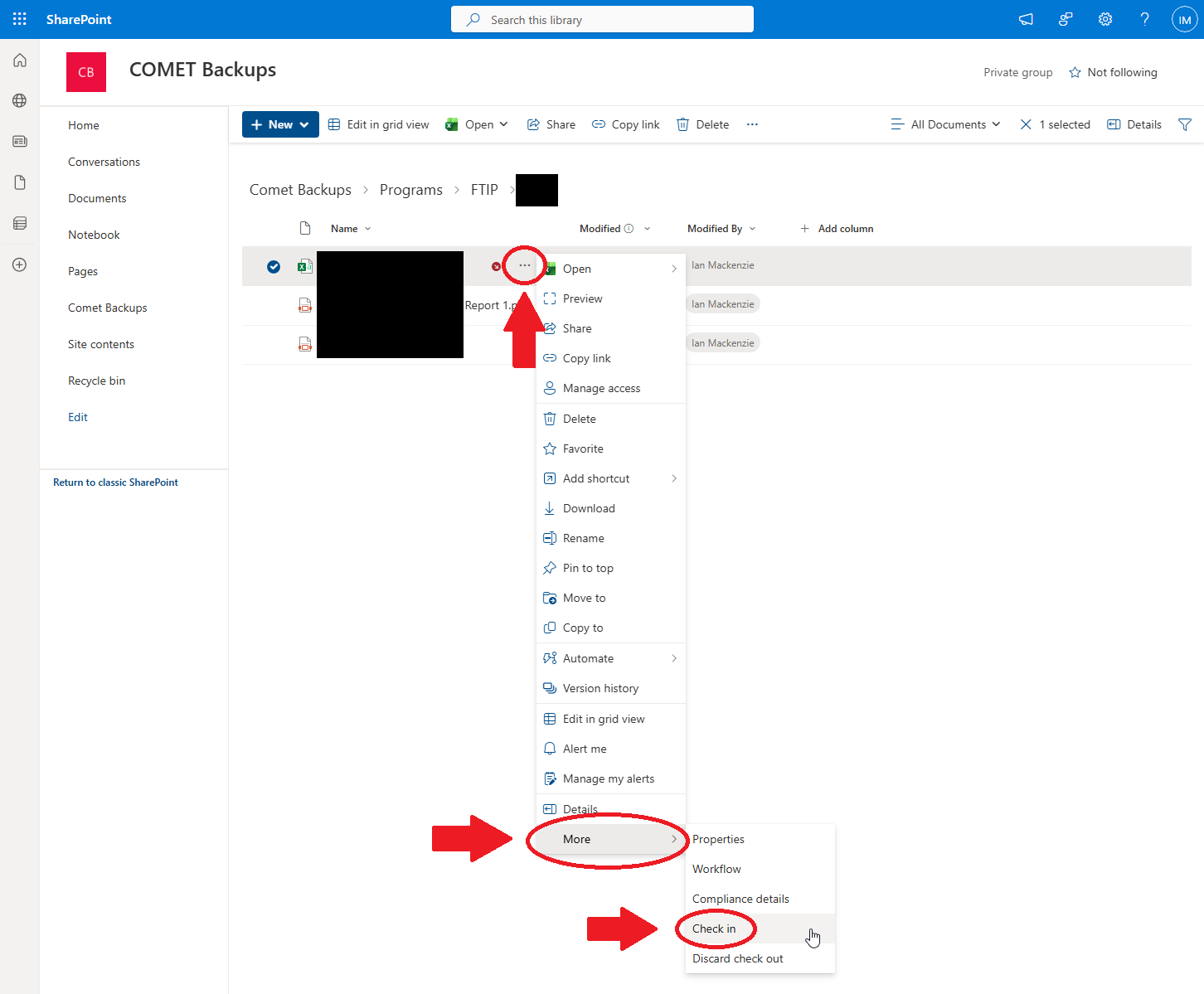
7. Once the file has been uploaded, it will appear in your Sharepoint folder. However, there is one more thing to do before it is completely uploaded. You still have to "check in" the file.
8. Click on the three dots to the right of the file you just uploaded. Go down to "More" in the resulting menu, then click on "Check in".
9. Enter comments for the check-in as needed, then hit the "Check In" button.
10. You are all set!

